













Galivo Desktop
Galivo finds the photos you don’t need.
You clear them easily.
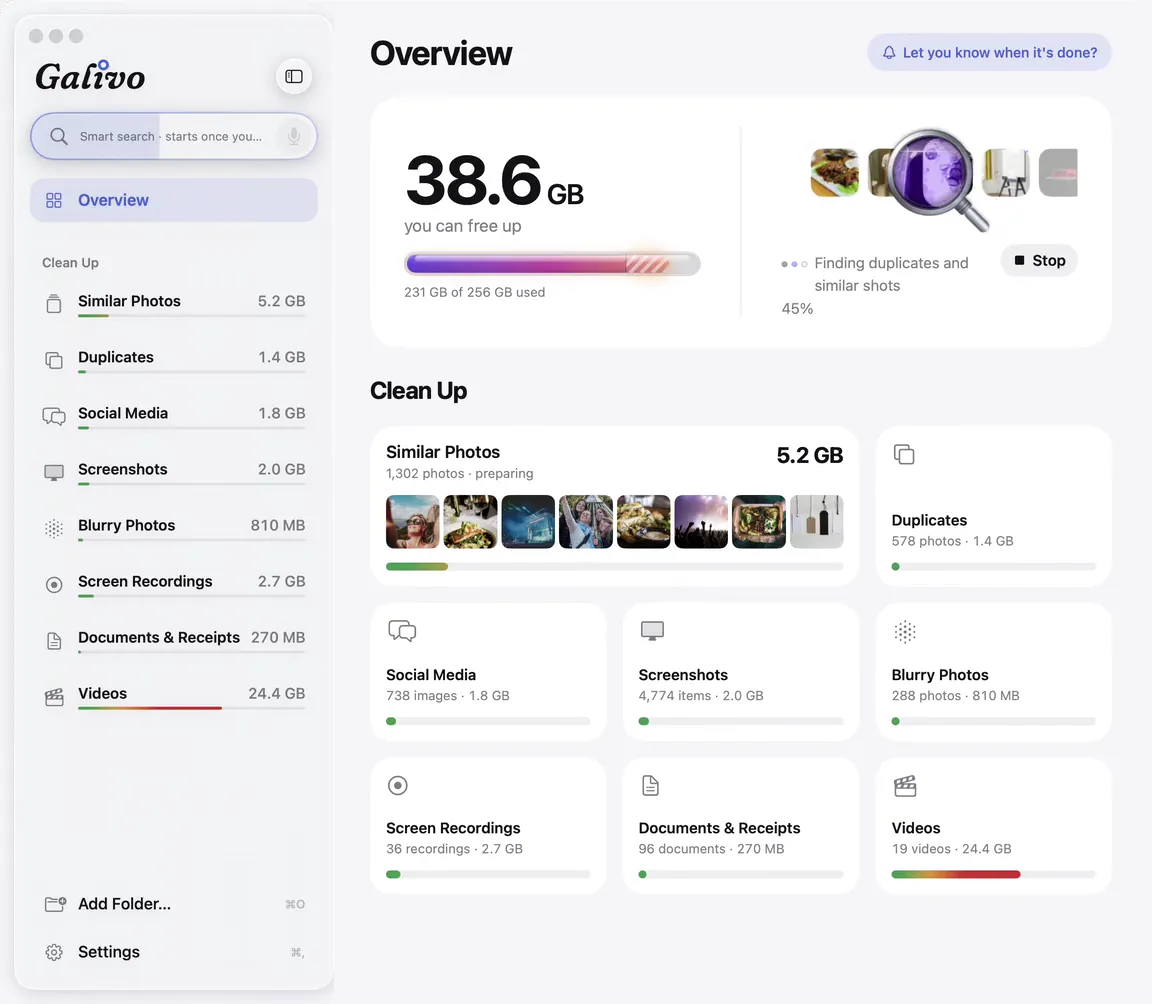
A Mac app with a sidebar and a big window for your groups. It cleans your Photos library and any folders you add, all on your Mac.

Waiting for Mac App Store approval
Mac · macOS 15 or later
Ten takes of the same moment. One is enough.
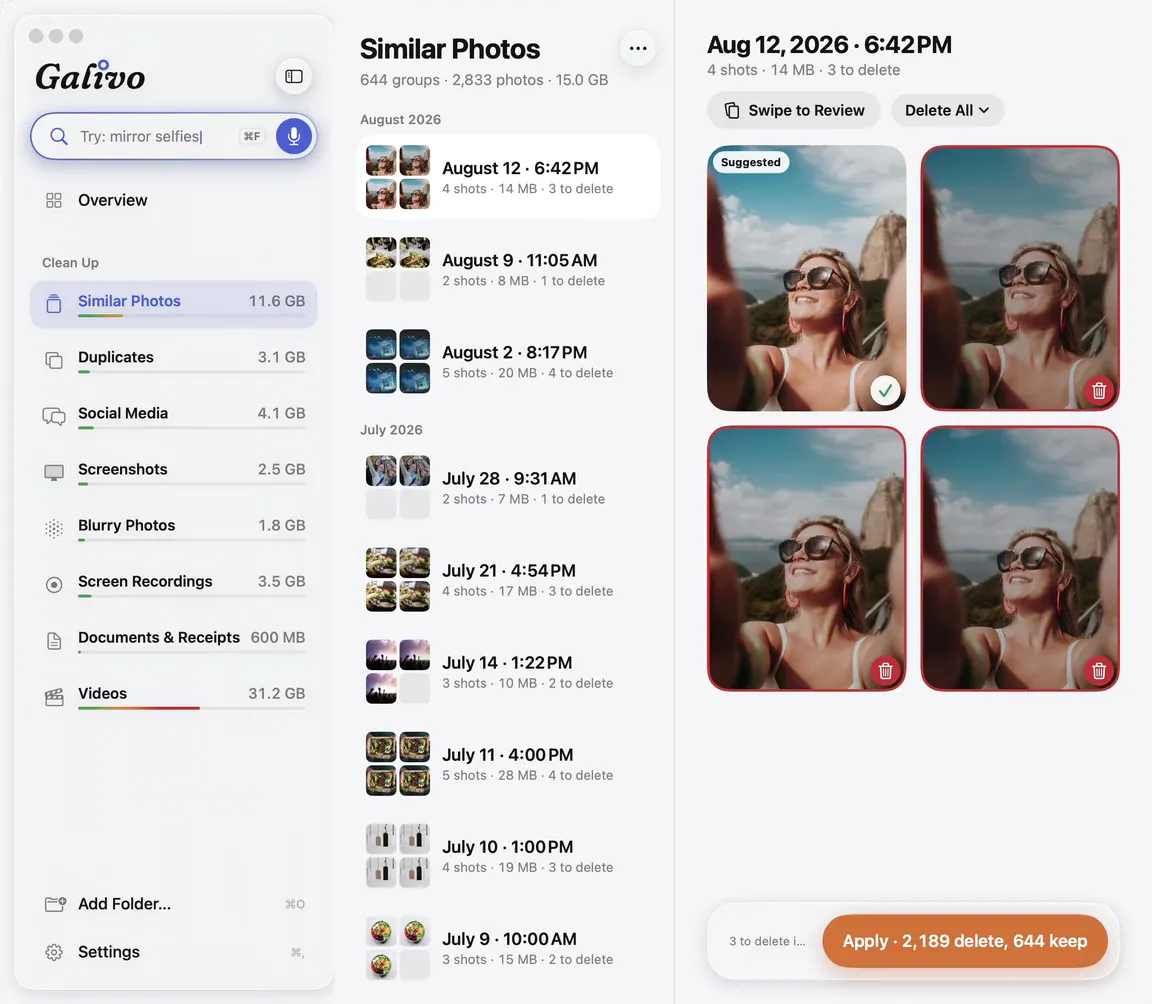
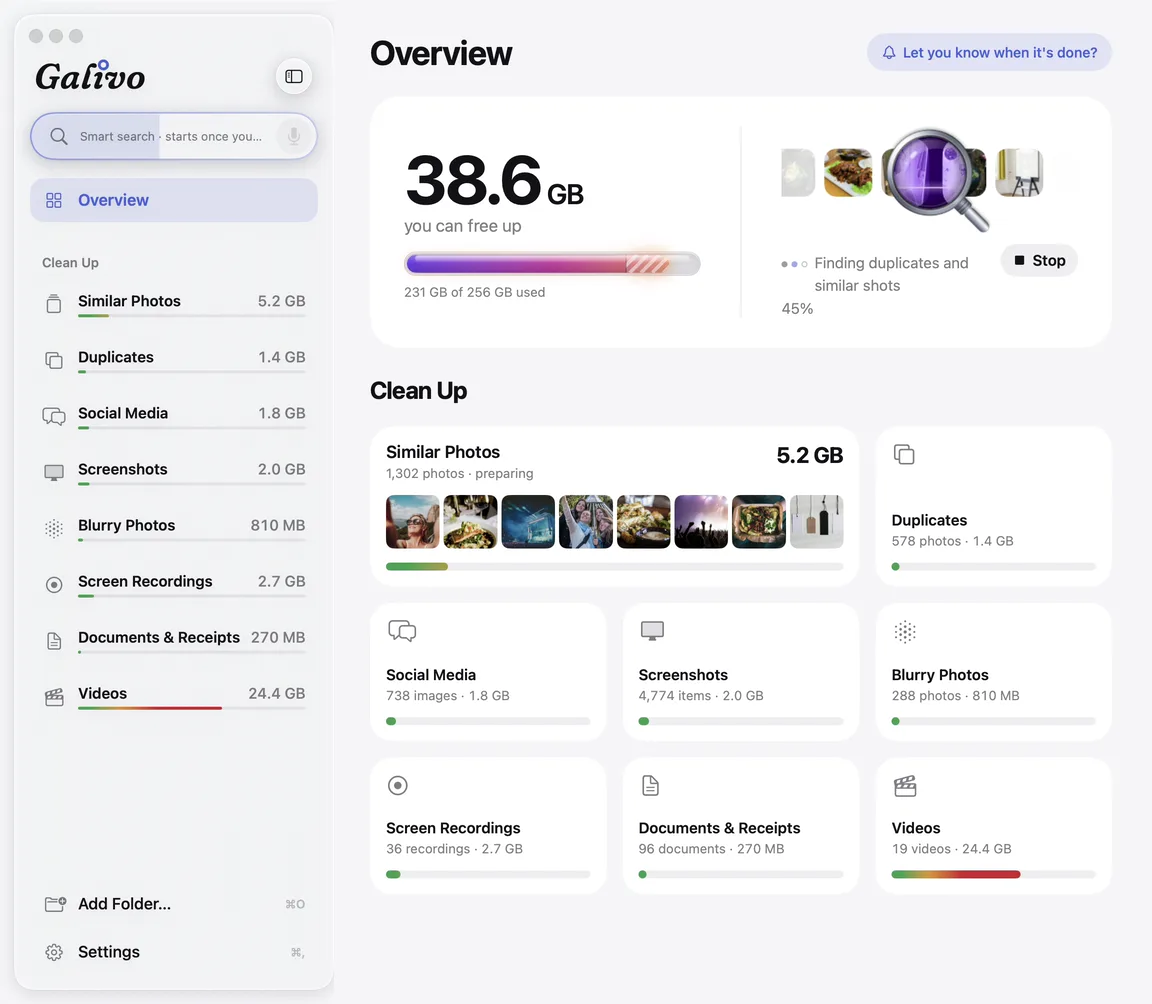
Galivo groups shots taken moments apart and suggests one to keep in each group. The rest comes marked to delete, and you can change any pick. Review the summary, then confirm.
- A suggested best shot comes markedCriteria like sharpness and resolution pick a suggested best shot for each group, and you can change any pick. Your favorites, edited and hidden photos stay out of the cleanup lists.
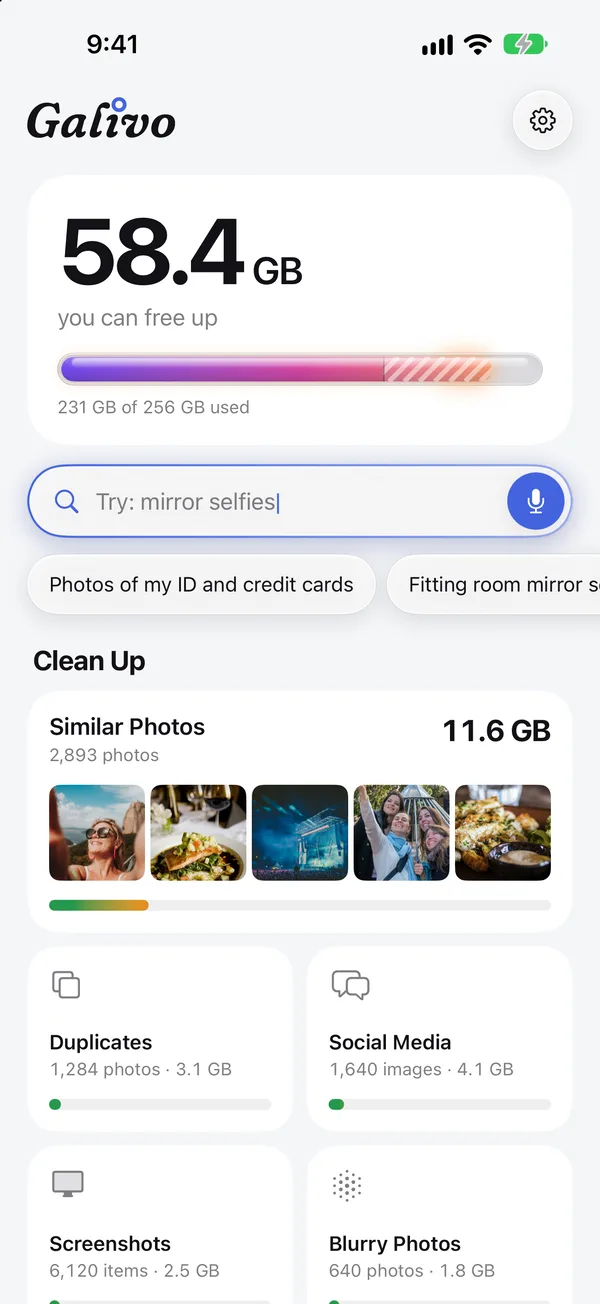
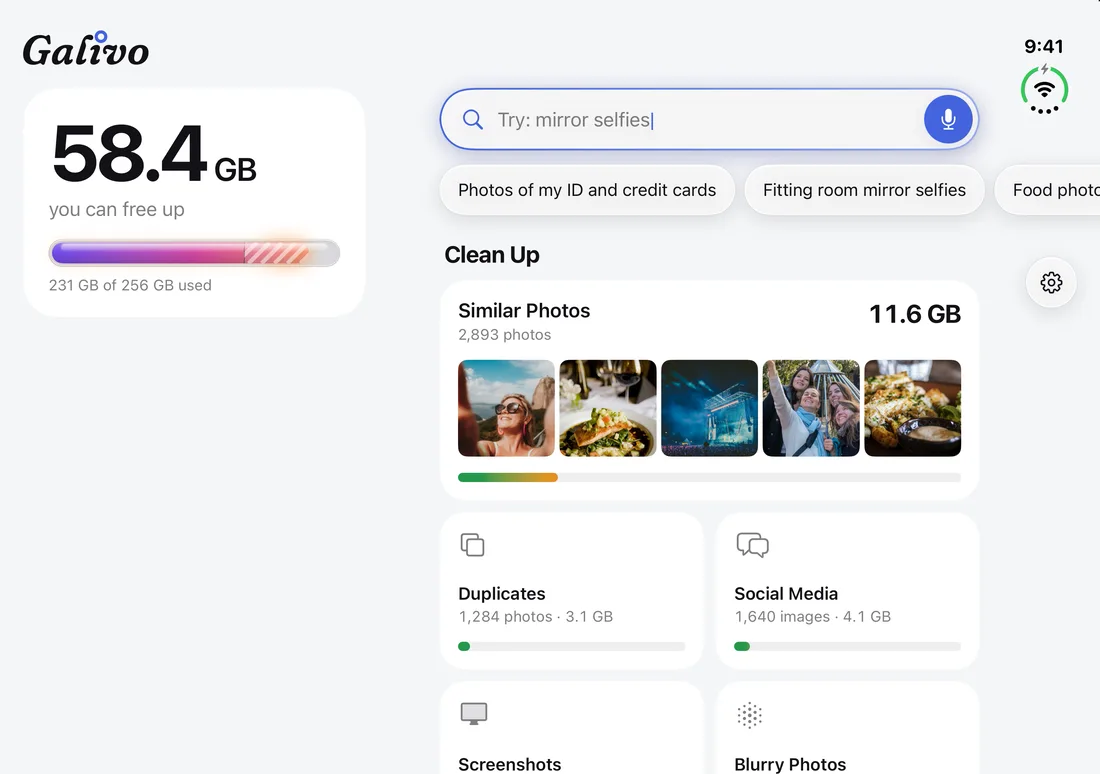
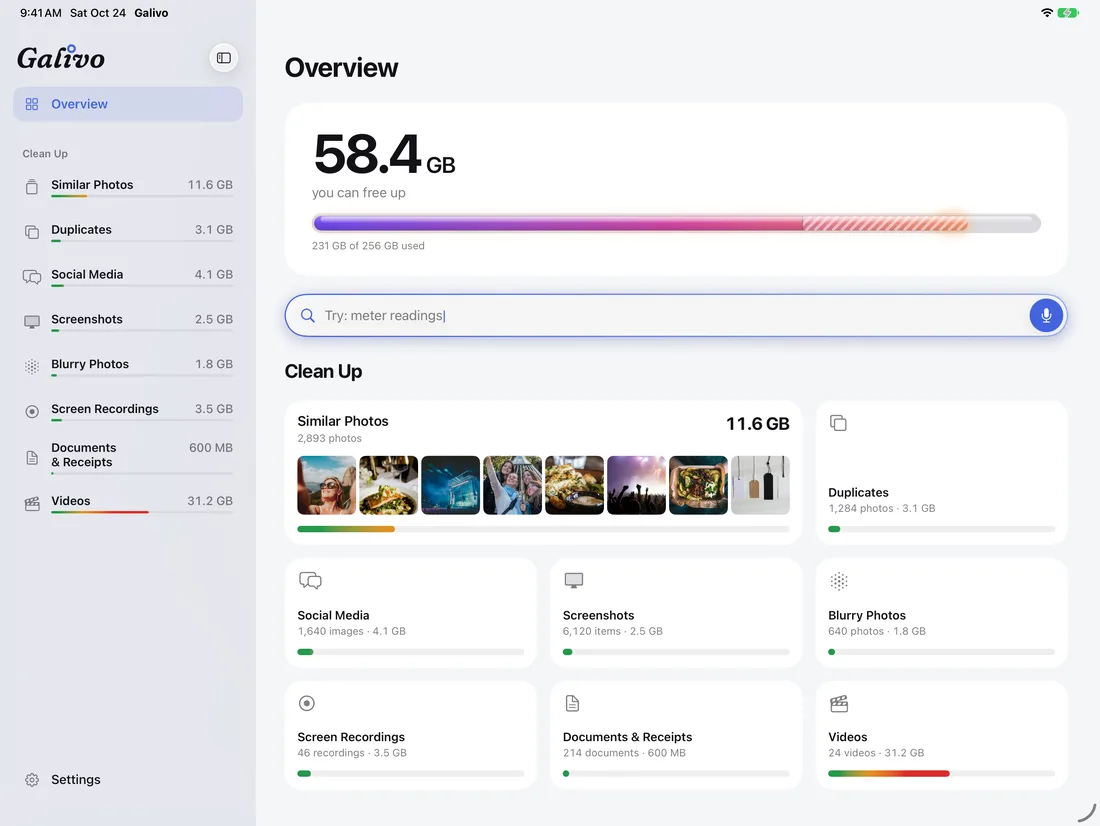
- Ready-made cleanup listsDuplicates, screenshots, blurry photos, documents and receipts, social media, large videos and screen recordings, each in its own list.
- Nothing happens until you say soMark each one keep or delete (or compress a video), then confirm the summary. Deleting from your Photos library needs the macOS confirmation. Files from folders you add move to the Trash once you confirm Galivo’s summary. What you keep waits under Kept, where you can undo it anytime.
Search, then delete.
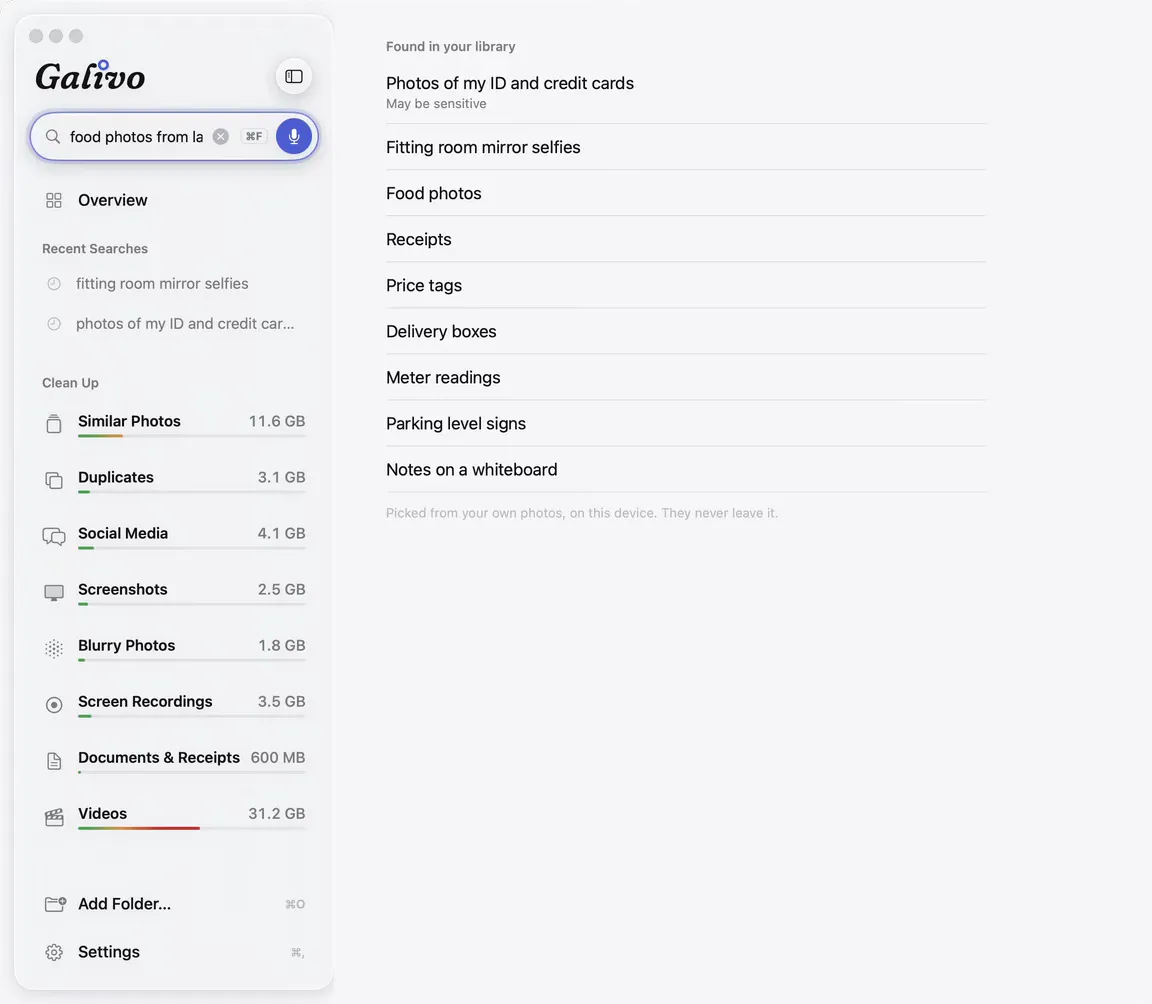
Know what you want gone? Type it the way you remember it: “fitting room mirror selfies”, “photos of my ID and credit cards”, “photos of where I parked the car”. Galivo looks at what each photo shows, so you don’t need tags, albums or file names. Review what it finds before you delete anything.
- Photos and videos togetherVideos show up in the same search, in one list with your photos.
- Dates and places become filtersWords like “last summer”, “from Paris” or “December 2023” turn into filters you can edit or remove.
- Your searches stay on your deviceWhat you type and the search index are kept only on your device.
Select them all. Delete in one go.
No ticking photos one by one. Select everything the search found, see how many items that is and their total size, then decide.
- Delete from either sourceClear your selection in one step. Adding to an album works for Photos library items only.
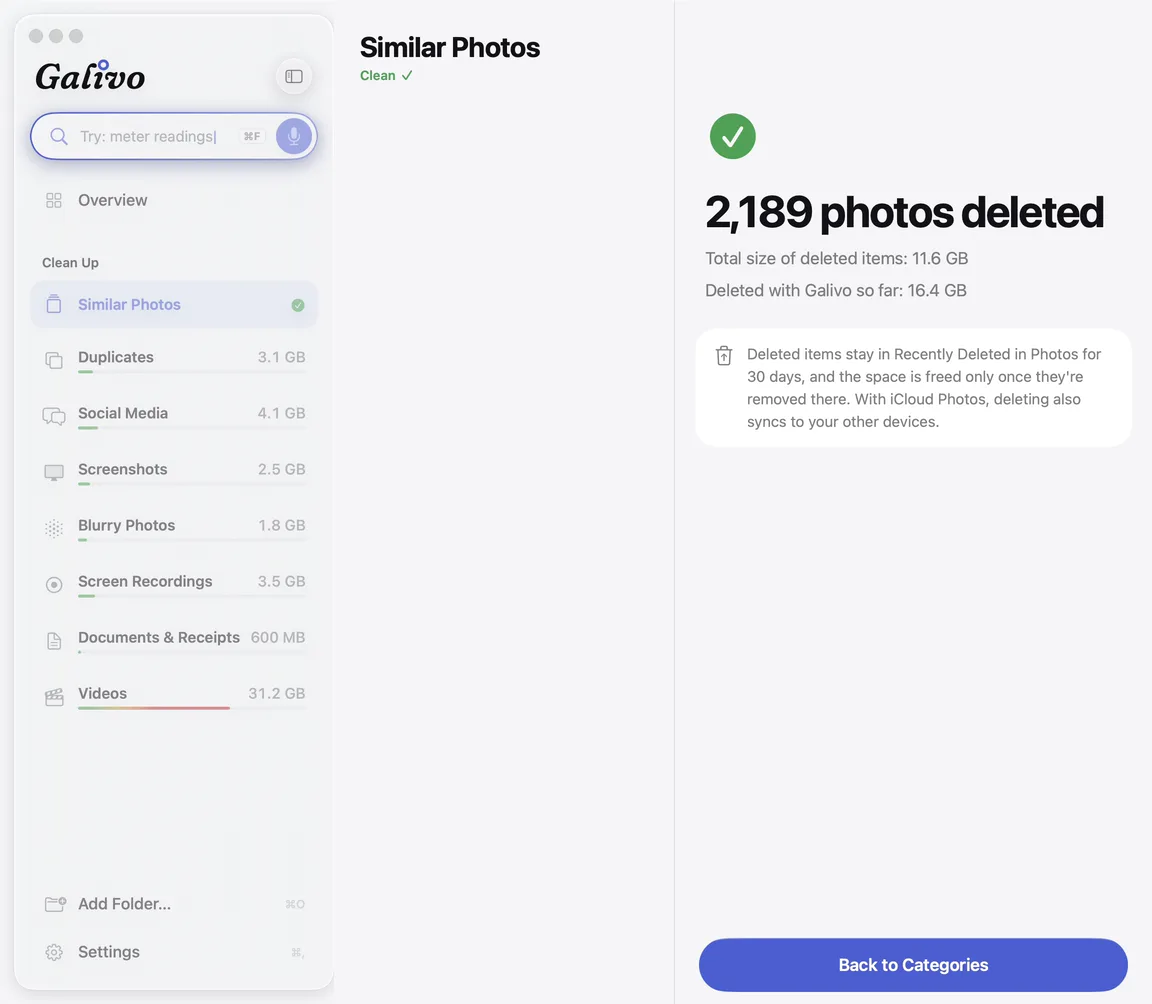
- See the size before you deleteThe total size of your selection is shown before anything is deleted. It’s an estimate; space returns once Recently Deleted or the Trash is emptied, by you or by the system.
- Getting items backPhotos items stay in Recently Deleted for 30 days, and with iCloud Photos the deletion reaches your other devices too. Folder files wait in the Trash. If Put Back is greyed out, drag the file to its old folder yourself.
Receipts and documents get their own list.
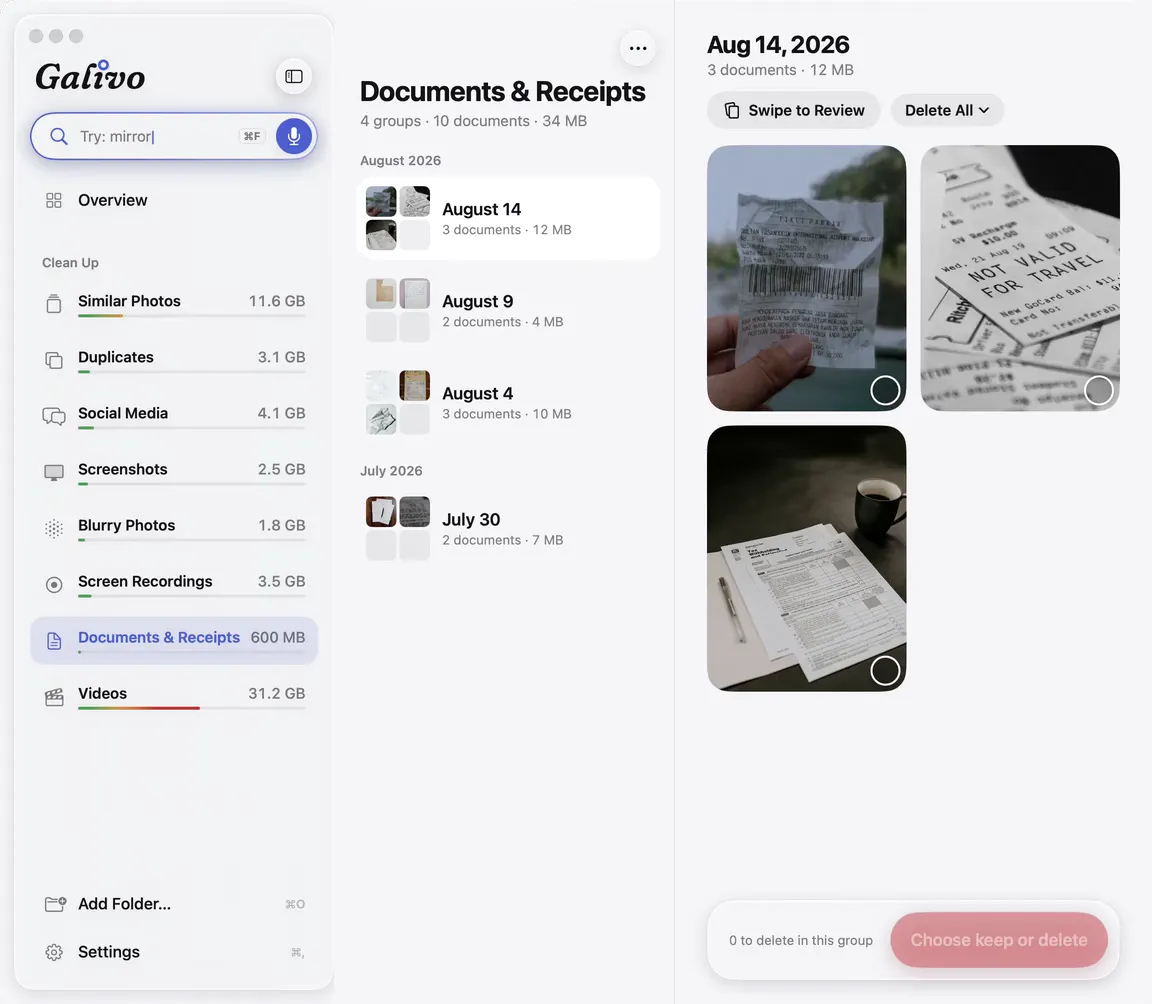
Photos of receipts, documents and notes are gathered in one list. Not sure about some of them? Go through them one by one and mark each Delete or Keep.
- What you keep stays keptOnce you keep a photo, no list suggests deleting it again. You can undo that under Kept.
Shrink a video instead of deleting it.
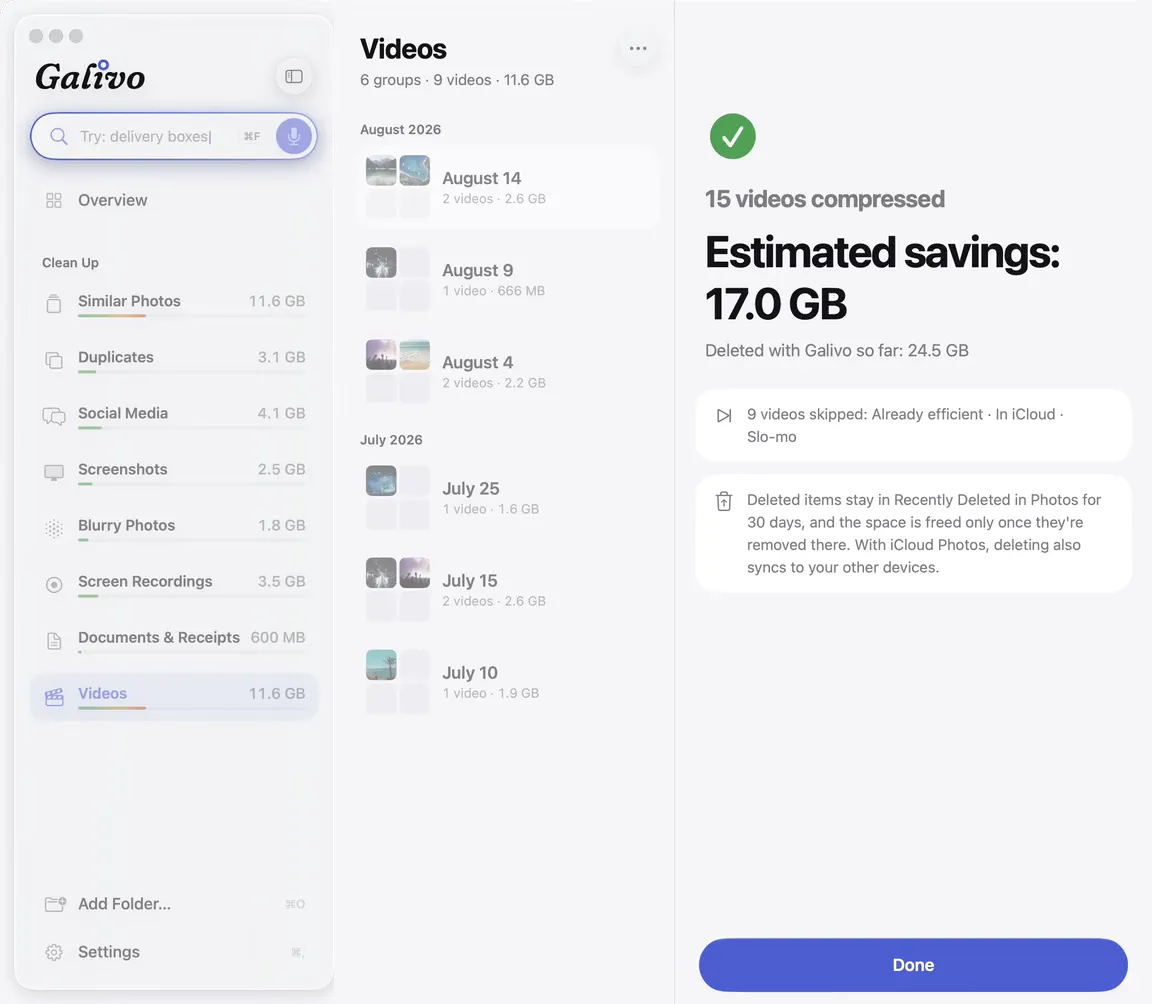
Large videos in your Photos library get three choices: keep, compress or delete. A compressed video stays in your library and takes up less space. The original is removed only after the new copy is saved and checked, and only with your confirmation.
- Photos library onlyEligible videos stored on your Mac in Photos can be compressed. Videos in folders you add can be kept or deleted, but not compressed.
- A smaller copy, up to 1080pGalivo saves the video again in HEVC, at up to 1080p. Videos stored only in iCloud are skipped.
Just say it.
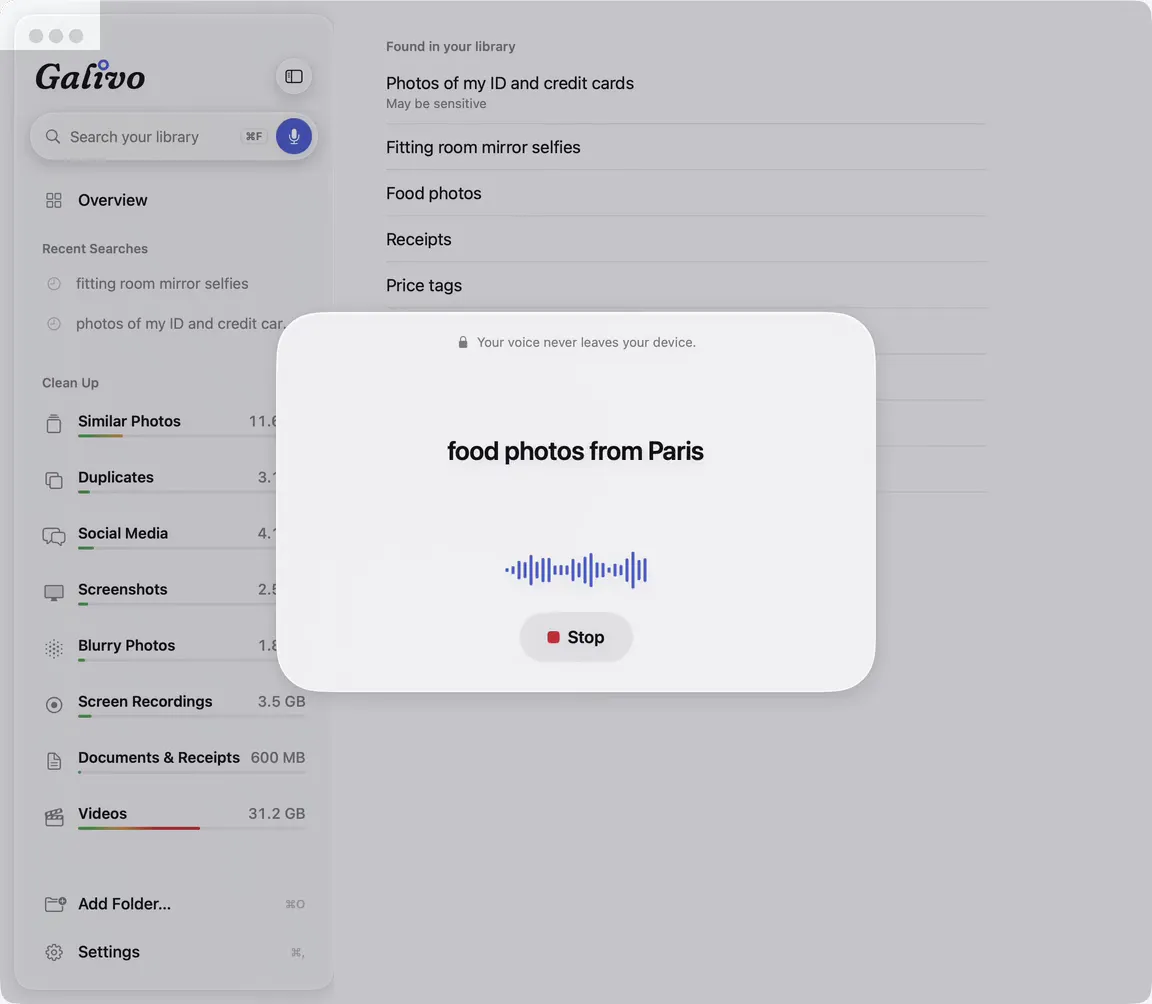
Click the mic and say “food photos from Paris last summer”, the way you’d tell a friend, and Galivo searches for it. The mic appears when your Mac supports on-device recognition. Voice search only searches; it never deletes anything.
- Recognized on your deviceYour speech is turned into text with on-device speech recognition. It isn’t recorded or sent anywhere.
- Everyday sentences workNo keywords to memorize. Say it the way you remember it, in English or Turkish.
Your photos never leave your device.
Analysis, grouping and search happen on your Mac. Your photos, searches and voice are never sent to a server. The Mac app goes online for two things: the smart search download (about 510 MB, with a little extra free space for setup) and an occasional purchase check with Apple. If five launches in a row get no answer from Apple, the app asks you to connect and try again.
- No cloudNot a single photo is uploaded.
- No accountNo email, no sign-in, no profile.
- No trackingNo analytics, ads or tracking code. App Store label: Data Not Collected.
- Offline, with one exceptionOnce the search file is downloaded, cleanup and search need no internet. Only the occasional purchase check with Apple does.
Pay once. No subscription.
No monthly fee, no ads, no in-app purchases. Every feature is included in the price. Smart search needs a download and some preparation on first use, and voice search depends on your device’s support.
- No subscription
- No ads
- No in-app purchases
Waiting for Mac App Store approval
Mac · macOS 15 or later